
yja
[Offnal] Nesting Navigators 구성하고 접근하기 본문
Root Navigator의 필요성
앞서 클린아키텍처에서 navigation 폴더가 있다고 했다.
사실 클린아키텍처의 이론만 공부해봤을 때 이 폴더가 네비게이션 할때 쓰는 폴더구나.. 그냥 이렇게만 이해했었지만, 프로젝트를 하면서 네비게이션 구조가 이렇게 되어서 따로 분리해야만 하는구나를 확실히 깨달았다!
src/
|--- domain
|--- data
|--- presentation
|--- navigation    // <- 이거 !
https://github.com/2025-Shifterz/Offnal-FE/tree/main/src/navigation
Offnal-FE/src/navigation at main · 2025-Shifterz/Offnal-FE
🌊2025 TAVE 15기 후반기 프로젝트 Offnal Frontend🌊. Contribute to 2025-Shifterz/Offnal-FE development by creating an account on GitHub.
github.com
Stack, BottomTab 이렇게 기능 하나하나씩만 공부하게 되면 중첩 네비게이터의 필요성을 느끼지 못한다.
앱에는 여러가지 루트 네비게이터를 갖게 된다.
예를 들면, 로그인할때 나오는 스크린들, 홈화면, 온보딩 화면들 이런식이다.
이런 것들이 어떤 순서로 나와야하고, 또 어떤 스크린들은 Tab 바 에서만 나오는 스크린들이 있다.
이런 순서와 구성들을 잘 짜고 구성하려면 반드시 이런것들을 루트에서 조작할 수 있는 Root Navigator가 있어야함을 알 게 된다.
전체 화면 구성 알아보기
파란색은 Navigator, 주황색은 Screen 이다.
Navigator 하위에는 Screen들이 있을 수도 있고, 또 다른 Navigator들이 있을 수도 있다.
- Root : 루트에는 Tab 안에 들어갈 네비게이터들과 Tab 외부에 있어야할 네비게이터들을 구분하기 위해 있다고 보면 된다.
- CalendarNavigator > CalendarScreen 에서 OnboardingScheduleNavigator > InfoEditScreen 으로 페이지 이동을 하고 싶을 때 무작정 넘어갈 수 없고, Root를 통해 가게 된다.

그래서 이런 네비게이터들을 아래처럼 하나씩 분리해서 경로를 설정해놓는 것이다.

Navigator 종류
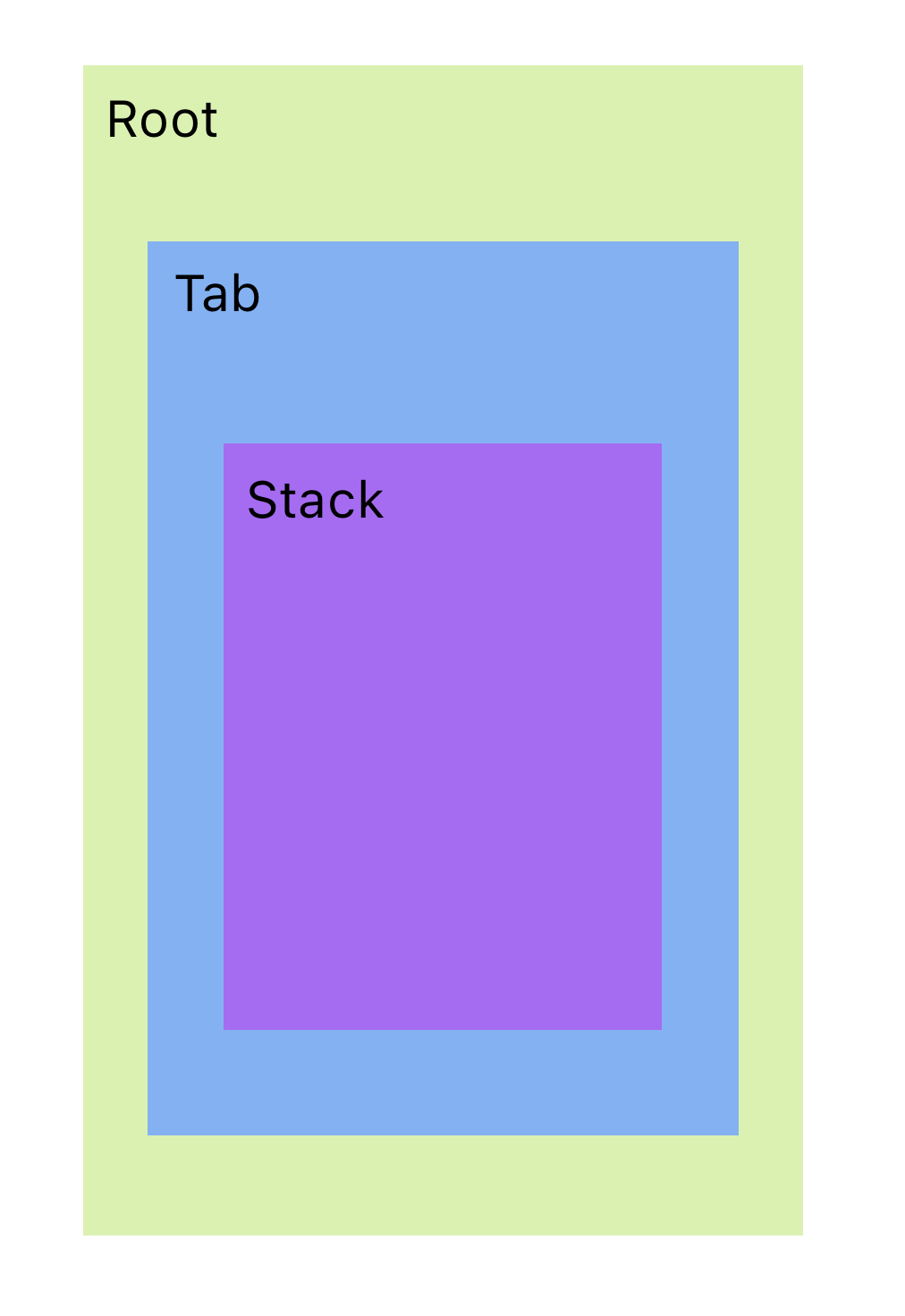
먼저 Navigator의 종류에 대해 알아보면 크게 3가지 Root, Tab, Stack 네비게이터가 있다.
1. Root Navigator
가장 상위 네비게이터인 Root에는 `<NavigationContainer>`로 감싸준다.
그리고 그 아래에서 `<RootStack.Navigator>`, `<RootStack.Screen>`으로 접근한다. 이름은 Screen이지만 진짜 스크린이 있을 필요는 없다.
Root가 네비게이터를 스크린처럼 인식하겠다는 얘기이다.
Root는 말그대로 맨 위에서 내려다보기 때문에 화면 이동 로직 순서대로 나열하는 것이 보기 좋다.
앱을 실행하면 스플래쉬 스크린 -> 로그인 -> 온보딩 ->탭(탭에서 처음에 메인으로 보임) -> ... 순서대로 보게 된다.

import { NavigationContainer } from '@react-navigation/native';
import { createNativeStackNavigator } from '@react-navigation/native-stack';

const RootStack = createNativeStackNavigator<RootStackParamList>();

const RootNavigator = () => {
  return (
    <NavigationContainer>
      <RootStack.Navigator screenOptions={{ headerShown: false }}>
        <RootStack.Screen name="SplashScreen" component={SplashScreen} />
        <RootStack.Screen name="LoginScreens" component={LoginNavigator} />
        <RootStack.Screen name="Tabs" component={TabsNavigator} />
        {/* 등등 */}
      </RootStack.Navigator>
    </NavigationContainer>
  );
};

export default RootNavigator;
2. Tab Navigator
우리 프로젝트에서는 `홈`, `근무 캘린더`, `내 정보` 이렇게 3개의 탭을 만들었다.
`TabsNavigator` 밑에 `MainNavigator`, `CalendarNavigator`, `MyInfoNavigator`가 있다.

마찬가지로 `<Tab.Navigator>` 안에 `<Tab.Screen>`을 작성한다.
여기서 BottomNavigationBar은 만든 컴포넌트이고 이 안에 `<Tab.Navigator>`가 있다.
만약 Root 네비게이터가 없는 경우에는 여기에서도 `<NavigationContainer>`로 감싸야 한다.
import { createBottomTabNavigator } from '@react-navigation/bottom-tabs';

const Tab = createBottomTabNavigator();

const TabsNavigator = () => {
  return (
    <BottomNavigationBar>
      <Tab.Screen name="Home" component={MainNavigator} />
      <Tab.Screen name="Calendar" component={CalendarNavigator} />
      <Tab.Screen name="MyInfo" component={MyInfoNavigator} />
    </BottomNavigationBar>
  );
};
export default TabsNavigator;
3. Stack Navigator
내 정보 탭 (`MyInfoNavigator`) 안에 있는 스택들이다.
이 탭 내에서만 네비게이트할 스택들이 있다. Tab Navigator 내에서 MyInfoNavigator 이 있고 그 내부에 스택들 ( `MyInfoScreen`, `UpdateMyInfoScreen`) 이 존재하기 때문에 하단 탭 바를 가리지 않는다.
지금은 기본 헤더들을 숨겨서 잘 모르겠지만, 헤더를 숨기지 않으면 실제로 이렇게 보인다.
그래서 탭 바를 가리지 않게 되는 것이다.
(예시 1.) MyInfoNavigator 의 스택들

(예시 2.) OnboardingSchuduleNavigator 의 스택들

스택 네비게이터는 `<Stack.Navigator>` 안에 `<Stack.Screen>` 으로 네비게이션을 구성한다.
import { createNativeStackNavigator } from '@react-navigation/native-stack';

const Stack = createNativeStackNavigator();

// 내정보 탭에 사용되는 스택 네비게이터

const MyInfoNavigator = () => {
  return (
    <Stack.Navigator>
      <Stack.Screen name="MyInfoScreen" component={MyInfoScreen} />
      <Stack.Screen
        name="UpdateMyInfoScreen"
        component={UpdateMyInfoScreen}
      />
    </Stack.Navigator>
  );
};

export default MyInfoNavigator;
네비게이터 타입 지정
`TabsNavigator` > `MainNavigator` 을 보자.
import { MainStackParamList } from './types';

// 메인 탭에 사용되는 스택 네비게이터
const Stack = createNativeStackNavigator<MainStackParamList>();

const MainNavigator = () => {
  return (
    <Stack.Navigator>
      <Stack.Screen name="MainScreen" component={MainScreen} options={{ headerShown: false }} />
      <Stack.Screen name="AutoAlarm" options={{ title: '자동 알람' }} component={AutoAlarm} />
      <Stack.Screen name="Todo" options={{ title: '할 일' }} component={TodoScreen} />
      <Stack.Screen name="Memo" options={{ title: '메모' }} component={MemoScreen} />
    </Stack.Navigator>
  );
};

export default MainNavigator;
MainStackParamList 라는 타입을 지정해준다.
그러면 이제 Main 네비게이터에서는 지정해준 스크린(스택)들로만 이동할 수 있다.
전달할 파라미터가 없을 경우 `undefined` 로 지정하고, 있는 경우 그 파라미터 타입도 지정해준다.
// types.ts
export type mainNavigation = NativeStackNavigationProp<MainStackParamList>;

export type MainStackParamList = {
  MainScreen: undefined;
  // MainScreen: { userId: string }; // 전달할 파라미터가 있는 경우
  AutoAlarm: undefined;
  Todo: undefined;
  Memo: undefined;
};
만약 타입 지정을 하지 않고 어떤 곳에서 Main 네비게이터의 스택들로 페이지 이동을 하려고 한다.
그러면 MainScreen의 타입을 `never` 타입으로 인식해 타입 오류가 발생한다.
`navigation.navigate(...)` 함수가 현재 타입 상으로 어떤 screen 이름도 허용하지 않기 때문에 'never'로 추론되었다는 뜻이다.
import { useNavigation } from '@react-navigation/native';

const navigation = useNavigation();

<SomComponent onPress={() => navigation.navigate('MainScreen')} /> // 타입 오류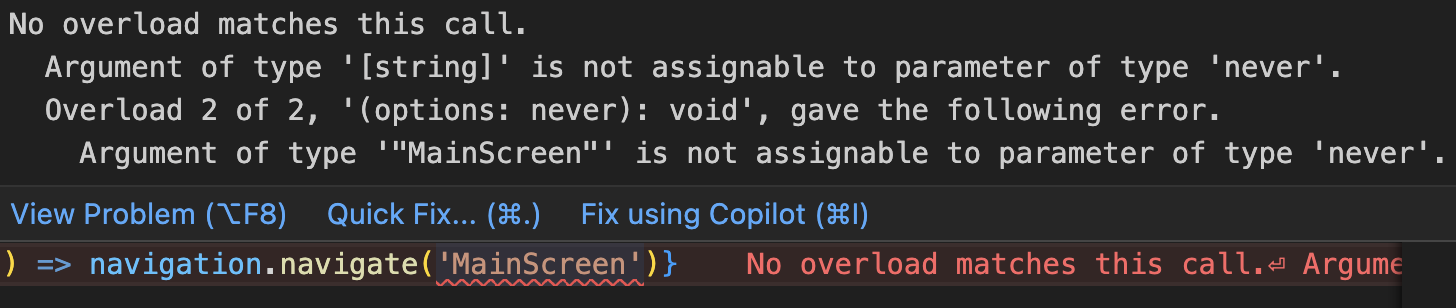
따라서 `mainNavigaton`을 타입으로 지정해줘야 한다.
import { mainNavigation } from '../../../navigation/types';

const navigation = useNavigation<mainNavigation>(); // <- 여기 !

<SomeComponent onPress={() => navigation.navigate('MainScreen')}/> // 타입 오류 안 난다
+ 페이지 이동 시 파라미터를 함께 전달하고 싶으면 !
오른쪽에 그 변수를 값과 함께 넘겨준다.
navigation.navigate('MainScreen', { userId: 'abc123' });
이동된 페이지에서는 `userId`를 props로 받아서 사용한다.
import { RouteProp } from '@react-navigation/native';
import { RootStackParamList } from './types';

type MainScreenRouteProp = RouteProp<RootStackParamList, 'MainScreen'>;

type Props = {
  route: MainScreenRouteProp;
};

const MainScreen = ({ route }: Props) => {
  const { userId } = route.params;
  // userId 사용 가능
};
중첩된 페이지 이동
같은 스택 네비게이터 안에서 페이지 이동은 간단하게 위에서 말한 것처럼 할 수 있다.
1. Root에서 접근하려면 (네비게이터를 두번 경유)
그런데 TabsNavigator > CalendarNavigator > `CalendarScreen` 스택 스크린에서 TabsNavigator > MainNavigator > `Todo` 스택 스크린으로 이동하고 싶으면 어떻게 해야할까?
루트에서 처음부터 내려오게 한다.
// types.ts
export type RootStackParamList = {
  SplashScreen: undefined;
  Tabs: NavigatorScreenParams<TabParamList> | undefined;
  LoginScreens: undefined;
  OnboardingSchedules: undefined;
  OnboardingSchedulesWithOCR: undefined;
};
const navigation = useNavigation<NativeStackNavigationProp<RootStackParamList>>();

return(
    <TouchableOpacity
        onPress={() =>
          navigation.navigate('Tabs', {
            screen: 'Home',
            params: {
              screen: 'Todo',
            },
          })
        }
    >
        {/* 기타 컴포넌트 */}
    </TouchableOpacity>
);
2. 네비게이터를 한 번 경유하는 경우
CalendarNavigator의 어떤 스택 스크린에서 OnboardingSchedulesNavigator 의 `InfoEdit` 스택 스크린으로 이동하고 싶을때에도 Root에서 접근할 수 있다.
그런데 경로도 생각해야하고 복잡하게 써야해서 싫을 수도 있다. 그럼 이렇게 쓸 수 있다.
const navigation = useNavigation<calendarNavigation>();

<SomeComponent onPress={() => {
  navigation.navigate('OnboardingSchedules', { screen: 'InfoEdit' });
}} />
대신에 calendarNavigation이 OnboardingSchedules 이름을 갖는 네비게이터를 타입으로 또 가져야 한다.
이렇게 하면 코드상에서 편하게 이동할 수는 있지만, 캘린더와 관련이 없는 네비게이터 이름을 타입으로 가져야한다는 단점이 있어 좋지는 않은 것 같다.
export type calendarNavigation = NativeStackNavigationProp<CalendarScreenStackParamList>;

export type CalendarScreenStackParamList = {
  CalendarScreen: undefined;
  EditCalendar: undefined;
  OnboardingSchedules: NavigatorScreenParams<OnboardingStackParamList> | undefined;
};'[App] React Native > Study' 카테고리의 다른 글
| [Offnal] interceptor pattern을 통한 토큰 재발급 (0) | 2025.10.12 |
|---|---|
| [Offnal] tailwind 커스텀 유틸리티 클래스, 커스텀 폰트 적용 (0) | 2025.10.06 |
| 캘린더 구현하기: react-native-calenders (5) | 2025.07.04 |
| [Offnal] SafeArea: 화면의 안전 영역 보장 (3) | 2025.07.04 |
| [Offnal] 클린 아키텍처 - Todo CRUD 실습 (0) | 2025.06.29 |


